



 Close Menu
 World
World
 Biography
 Health
 Education
 Business
 Lifestyle
 Sports
 Technology
 Animals
 History
 Food
Food
 Religious
 Startups
 Movies
 Politics
 Fashion
 Covid
Covid
 Diet
Diet
 Fitness
 Marketing
 Travel
 Science
 Reviews
 Social media
 Stories
 Facts
Facts
 Art
Art
 Entertainment
Alice Layla

Business
Transfer QuickBooks Desktop to Another Computer in Simple Steps
 Alice Layla
Getting a new computer should feel like an upgrade, not a headache — but when it comes time to move QuickBooks Desktop to a new computer, many users freeze up. Will your company file transfer safely? Do you need your original installation disk? What happens to your saved preferences, memorized reports, and payroll data? These are common, valid concerns, and the good news is that Intuit has built tools specifically to make this process smooth.
Whether you're wondering "Can I move QuickBooks Desktop from one computer to another?" or you've already tried and hit a snag, this guide walks through every method, step by step, so your transition happens without data loss or downtime.
Why You Might Need to Transfer QuickBooks Desktop
- Hardware Upgrade or Replacement — Old computers slow down or fail entirely, making a transfer to new computer necessary and often urgent.
- Operating System Incompatibility — Older QuickBooks versions sometimes don't run properly on newer Windows updates, requiring a fresh install on updated hardware.
- Office Relocation or Staff Changes — Businesses reassigning computers between employees or locations need company files moved without disrupting bookkeeping continuity.
- Lost or Missing Installation Disk — Many users no longer have physical installation media, making them wonder how to install QuickBooks on new computer without disk.
- Multiple Computer Setup — Growing businesses often need to reinstall QuickBooks Desktop on additional workstations to support more users.
Step-by-Step: Transfer QuickBooks Desktop Using the Migration Tool
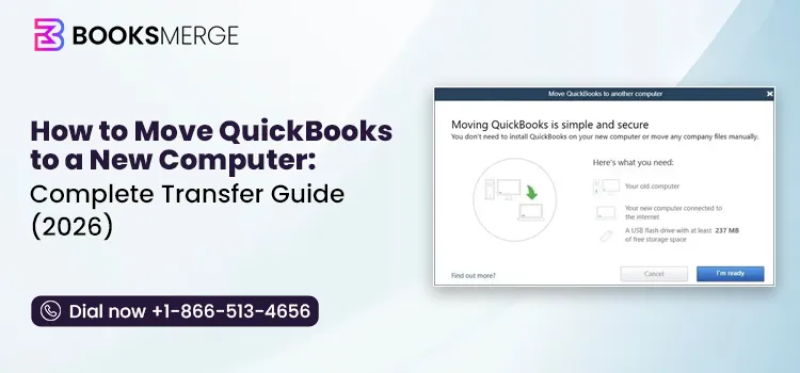
The QuickBooks migration tool is the fastest, most reliable method for most users, since it bundles your company file, license, and preferences automatically.
Step 1: Prepare Your Old Computer- Open QuickBooks Desktop on your current computer.
- Sign in as the admin user.
- Go to File > Utilities > Move QuickBooks to another computer.
- Click I'm Ready, then create a one-time password. Note this password carefully — you'll need it on the new computer.
- Insert a USB flash drive with at least 250MB of free space.
- Select the USB drive as the destination.
- Click Continue. The migration tool bundles your company file, QuickBooks installation files, and license information into a single package on the drive.
- Insert the USB drive into the new computer.
- Open the drive and double-click the Move_QuickBooks.bat file.
- Enter the one-time password created earlier.
- Choose your destination folder and click Let's Go.
- QuickBooks Desktop installs automatically along with your company file.
Manual Transfer Method (Without the Migration Tool)
If the migration tool isn't available or you prefer manual control, this method works for any transfer QuickBooks company file to new computer scenario.
Step 1: Back Up Your Company File- On the old computer, open QuickBooks and go to File > Back Up Company > Create Local Backup.
- Choose a save location — external drive, USB, or cloud storage.
- Click Save it now and complete the backup.
- Press F2 (or Ctrl+1) inside QuickBooks to open the Product Information window.
- Note your License and Product numbers — you'll need these during reinstallation.
- Download QuickBooks Desktop from Intuit's official site, or use your original installer.
- Run the installer and enter your License and Product numbers when prompted.
- Choose Custom and Network options, then select the appropriate install type for your setup.
- Complete the installation and open QuickBooks.
- Go to File > Open or Restore Company.
- Select Restore a backup copy, then Local backup.
- Browse to your saved .qbb file and click Open.
- Choose a save location and click Save to restore the file.
For QuickBooks Online Users
If you use QuickBooks Online, there's no installation transfer needed at all — your data lives securely in the cloud. Simply sign in at the QuickBooks Online website from your new computer using your existing username and password, and your company file, reports, and settings will already be there.
Prevention Tips
✅ Always note your License and Product numbers before starting any transfer
✅ Create a fresh backup immediately before migrating
✅ Use a USB drive with sufficient free space for the migration tool
✅ Confirm your new computer meets QuickBooks Desktop's system requirements
✅ Deactivate QuickBooks on the old computer if it will no longer be used, to free up your license seat
✅ Keep the one-time migration password until the transfer is fully confirmed successful
Conclusion
Moving QuickBooks Desktop to a new computer doesn't have to be stressful. Whether you use the built-in migration tool for a fast, automated transfer or prefer the manual backup-and-restore method for more control, your company file, license, and preferences can move safely without data loss. Following the steps above — and confirming your license details before you begin — ensures your transition to a new computer is smooth, complete, and ready for business the moment installation finishes.
Frequently Asked Questions
1. Can I move QuickBooks Desktop from one computer to another without the disk?
Yes. The migration tool and Intuit's official downloads both work without needing a physical installation disk.
2. Does the migration tool transfer my company file automatically?
Yes, the QuickBooks migration tool download bundles your company file, license, and preferences into one package.
3. How to reinstall QuickBooks Desktop on a new computer if I lost my license number?
Sign in to your Intuit account online, where license and product information is stored under your registered products.
4. Will transferring QuickBooks Desktop affect my payroll data?
No, as long as you back up and restore your complete company file, payroll data transfers along with it.
5. Can I use QuickBooks on both the old and new computer at the same time?
Only if your license permits multiple installations. Otherwise, deactivate the license on the old computer first.
6. Is a manual backup safer than using the migration tool?
Both methods are reliable; the manual method simply offers more control over each step.
Source:
Click for the: Full Story
You might like








You Might Like this