


 Close Menu
 World
 Biography
 Health
 Education
 Business
 Lifestyle
 Sports
 Technology
 Animals
 History
 Food
 Religious
 Startups
 Movies
 Politics
 Fashion
 Covid
 Diet
 Fitness
 Marketing
 Travel
 Science
 Reviews
 Social media
 Stories
 Facts
 Art
 Entertainment
Daisy Adams

Business
Half Your Design Is Missing on the Canvas? Here’s How to Get It Back
 Daisy Adams
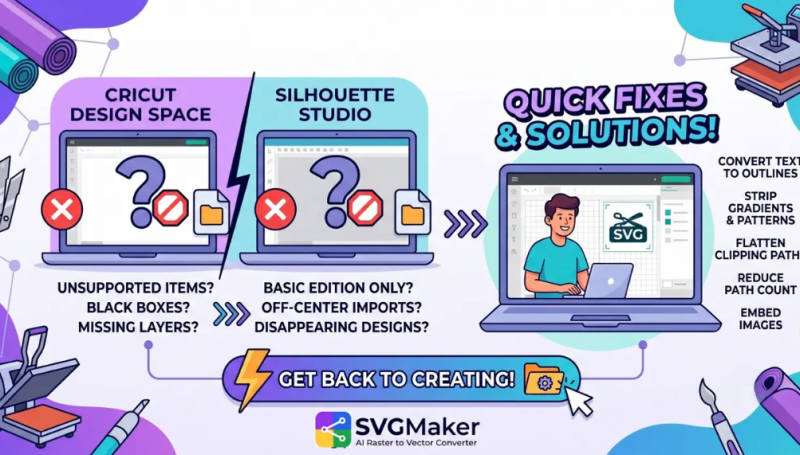
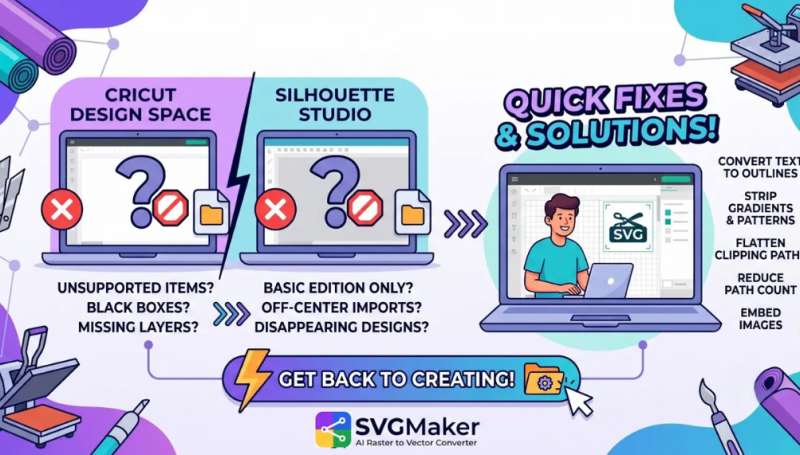
You upload a rich, multi-part design and expect a full-color masterpiece. Instead, half of it is gone, or the whole thing has flattened into a plain silhouette. It is one of the more annoying surprises in crafting, mostly because you can’t tell where the missing pieces went. Anyone working through How to Open SVG Files in Cricut Design Space will run into this at some point. The cause is usually in how the layers were built and saved, so let’s look at why they disappear and how to bring them back.
Compound Paths That Swallow Your DetailsDesigners use compound paths to create hollow spaces, like the center of a letter “O” or a cutout inside a shape. If that information isn’t saved cleanly during export, your software may treat the whole object as one solid mass, with the smaller shapes buried underneath. Opening the file in an editor like Inkscape or Illustrator and releasing the compound path often brings those hidden pieces back into view.
Layers Left Hidden by the DesignerMost illustration programs let you switch layers off while you work. If the creator saved the file with some of them hidden, your cutting software will skip them on import. The fix is simple. Open the file in a graphics program, go through the layers panel, and make sure every visibility icon is turned on before you save again.
Shapes That Are There but InvisibleSometimes nothing is actually missing. A layer may sit on the canvas with zero opacity, or share the exact color of the shape behind it, so your eyes can’t pick it out. Check the layers panel, click through each item, and give the suspicious ones a bold, contrasting color. If the piece reappears, you have found your culprit.
Locked Layers and Stubborn ImportsProfessional illustration tools let you lock layers to avoid accidental edits. A locked layer can sometimes get in the way when the file is exported. Before saving anything for your cutting machine, unlock every layer so all the geometry is written out properly.
Hidden Causes in the CodeMissing pieces can also come from clipping paths and masks. Browsers happily hide masked areas, but Cricut doesn’t recognize masks, so those shapes may vanish. Linked images create a similar problem, because the software can’t follow a link to a file on someone else’s computer. Flattening the masks and embedding any images solves both.
A Faster Route Through SVGMakerIf you don’t want to hunt through layer panels, SVGMaker is worth a try. Run the file through its AI converter or open it in the SVG editor, and it flattens clipping paths, embeds images, keeps colors solid, and exports a clean, cut-ready vector. You get a file where every piece is a real, visible shape.
ConclusionMissing layers feel like a mystery, but the explanation is usually simple: a compound path, a hidden layer, a transparent fill, a lock, or a mask. Go through those one by one and you will almost always find the missing pieces. Keep your vector structure tidy before you save, and your multi-layer designs will load completely every time.
Source:
Click for the: Full Story
You might like









You Might Like this