



 Close Menu
 World
World
 Biography
 Health
 Education
 Business
 Lifestyle
 Sports
 Technology
 Animals
 History
 Food
Food
 Religious
 Startups
 Movies
 Politics
 Fashion
 Covid
Covid
 Diet
Diet
 Fitness
 Marketing
 Travel
 Science
 Reviews
 Social media
 Stories
 Facts
Facts
 Art
Art
 Entertainment
Jhon Martin

Business
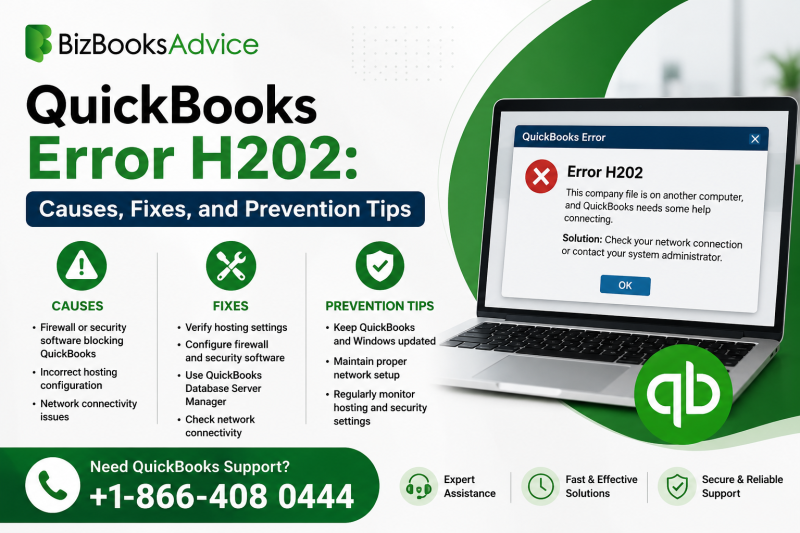
QuickBooks Error H202: Causes, Fixes, and Prevention Tips
 Jhon Martin
If you manage your company's books using multiple computers on a shared network, there's a good chance you've bumped into a frustrating roadblock: QuickBooks Error H202. This error pops up when QuickBooks Desktop tries to switch a company file into multi-user mode but can't establish a proper connection with the server hosting the file. Instead of collaborating smoothly with your team, you're stuck staring at an error message.
The good news is that QuickBooks Error H202 is almost always fixable without professional intervention, provided you understand what's causing it and follow the right troubleshooting sequence. This guide walks through everything you need to know — from the root causes to step-by-step solutions — so you can get back to your books quickly.
What Is QuickBooks Error H202?
QuickBooks Desktop supports two working modes: single-user mode, where only one person can access the company file at a time, and multi-user mode, where several team members can open and work on the same file simultaneously. This second mode relies on a small background service called the QuickBooks Database Server Manager, which runs on the computer hosting the company file and manages requests from other workstations on the network.
QuickBooks Error H202 occurs specifically when a workstation attempting to access the company file in multi-user mode cannot communicate with the host computer. Essentially, your local copy of QuickBooks is asking the server, "Can I open this file?" and never gets a response. The result is a dialog box informing you that QuickBooks is unable to switch to multi-user mode, along with the H202 error code.
This issue falls under a broader family of "H-series" errors (H101, H202, H303, H505), all of which relate to multi-user hosting problems. H202 is one of the most commonly reported because it can stem from several different underlying issues, ranging from simple network hiccups to more complex firewall misconfigurations.
Common Causes Behind Error H202
Before jumping into fixes, it helps to understand why this error shows up in the first place. Here are the most frequent culprits:
1. Incorrect Hosting Configuration Sometimes more than one computer on the network is set to host the company file, or none of them are. QuickBooks needs exactly one machine designated as the host for multi-user access to work correctly.
2. Firewall or Security Software Blocking Communication Windows Firewall or third-party antivirus programs often block the specific ports QuickBooks uses to communicate between workstations and the server. If these ports are closed or restricted, workstations can't "see" the host computer.
3. QuickBooks Database Server Manager Not Running The Database Server Manager service must be active on the host computer. If it has stopped, crashed, or was never installed, remote workstations won't be able to connect to the company file.
4. DNS or Network Name Resolution Issues QuickBooks relies on your network correctly resolving the host computer's name to its IP address. If there's a mismatch — perhaps due to a renamed computer, changed IP address, or corrupted host file — the connection attempt fails.
5. Damaged .ND File Every QuickBooks company file has an accompanying Network Data (.ND) file that stores configuration details needed for multi-user access. If this file becomes damaged or outdated, it can trigger connectivity errors like H202.
6. Outdated QuickBooks Version Running an old or unpatched version of QuickBooks Desktop can introduce compatibility issues with your network setup, especially after Windows updates or router firmware changes.
Step-by-Step Solutions to Fix QuickBooks Error H202
Let's go through the most effective troubleshooting methods, starting with the simplest and moving toward more advanced fixes.
Solution 1: Use the QuickBooks Database Server Manager
On the host computer, open the QuickBooks Database Server Manager (search for it in the Start menu). Click "Scan Folders" and add the folder where your company file is stored, then run the scan. This tool checks the health of your company file and network configuration, automatically repairing minor issues it detects. Once the scan completes, try reopening the company file from a workstation.
Solution 2: Confirm Correct Hosting Settings
On the server computer:
- Open QuickBooks and go to File > Utilities.
- If you see "Host Multi-User Access," click it to enable hosting.
- If you see "Stop Hosting Multi-User Access," hosting is already enabled — leave it as is.
Then check every workstation to make sure hosting is turned OFF on those machines. Only the designated server should host the file.
Solution 3: Restart Background Services
QuickBooks relies on services called "QuickBooksDBXX" (where XX corresponds to your QuickBooks version) to manage multi-user access. To restart them:
- Press Windows + R, type services.msc, and hit Enter.
- Locate the QuickBooksDBXX service matching your installed version.
- Right-click it and select Restart. If it isn't running, start it manually.
- Set the startup type to Automatic so it launches whenever the computer boots.
Solution 4: Add QuickBooks as a Firewall Exception
Firewalls are one of the leading causes of H202, so it's worth double-checking your configuration:
- Open Windows Firewall with Advanced Security.
- Create new inbound and outbound rules for the specific ports QuickBooks uses (these vary by version, but the Database Server Manager's "Port Monitor" tab will show you the exact ports in use).
- Add QuickBooksDB.exe, QBW32.exe, and QBDBMgrN.exe as allowed programs.
- If you're using third-party antivirus software, check its settings for a similar exception list, since it may be overriding Windows Firewall rules.
Solution 5: Verify Network Connectivity and Computer Name
Confirm that the workstation can actually "see" the host computer on the network:
- Open Command Prompt and ping the host computer's name or IP address.
- If the ping fails, there may be a broader network issue unrelated to QuickBooks that needs to be resolved first (such as a router or switch problem).
- Make sure the host computer's name doesn't include special characters or exceed standard length limits, as this can interfere with network name resolution.
Solution 6: Rename or Recreate the .ND File
If the Network Data file is corrupted, recreating it often resolves the issue:
- Navigate to the folder containing your company file.
- Locate the file with the same name as your company file but ending in .ND.
- Rename it by adding "old" to the end (for example, CompanyFile.qbw.nd.old).
- Reopen QuickBooks Database Server Manager and rescan the folder — this regenerates a fresh .ND file automatically.
Solution 7: Update QuickBooks Desktop
Outdated software is a common but overlooked cause. Go to Help > Update QuickBooks Desktop, download the latest release, and install it on both the host computer and all workstations. Restart your computers afterward and attempt to reopen the file in multi-user mode.
Solution 8: Use the QuickBooks Tool Hub
Intuit's QuickBooks Tool Hub bundles several diagnostic and repair utilities into one application. Download and install it, then navigate to the "Network Issues" tab and run the QuickBooks Database Server Manager scan from within the Tool Hub. This is often faster than troubleshooting each component manually, and it's a good first stop before deeper manual fixes.
Preventing QuickBooks Error H202 in the Future
Once you've resolved the error, a few ongoing habits can help you avoid a repeat occurrence:
- Keep QuickBooks Desktop updated on every computer in your network, not just the host.
- Avoid changing the host computer's name or network settings without also updating your QuickBooks hosting configuration.
- Regularly restart the QuickBooksDBXX service if your server computer stays on for extended periods without rebooting.
- Maintain consistent firewall and antivirus exceptions across all machines, especially after software updates that may reset custom rules.
- Back up your company file regularly so that if a deeper corruption issue ever arises, you have a clean copy to fall back on.
When to Consider Additional Support
Most instances of Error H202 are resolved using the steps above, particularly the Database Server Manager scan and firewall configuration checks. However, in networks with more complex configurations — multiple subnets, VPN connections, or unusual router setups — the troubleshooting process can take longer and may require deeper networking knowledge.
If you've worked through these solutions and the error persists, it may be worth having your IT team or a QuickBooks specialist review your network architecture directly, since the root cause could be tied to infrastructure outside of QuickBooks itself.
Final Thoughts
QuickBooks Error H202 can be a real productivity blocker, especially for growing businesses that depend on multiple team members accessing the same company file simultaneously. But in the vast majority of cases, it comes down to a handful of predictable causes: hosting misconfiguration, firewall restrictions, a stalled database service, or a damaged network data file. By methodically working through the Database Server Manager scan, hosting settings, firewall rules, and .ND file check, you'll likely have multi-user mode restored without much downtime.
Taking a few minutes to review your network setup after resolving the issue — and keeping QuickBooks updated across all machines — will go a long way toward preventing H202 from resurfacing down the road.
For further assistance, you can reach out to the support line at +1-866-408-0444.
Frequently Asked Questions
1. Why does QuickBooks Error H202 only appear on some workstations and not others?
This usually happens when the hosting configuration is inconsistent across your network. If one workstation has trouble resolving the host computer's name or is blocked by a local firewall rule that other machines don't have, it will throw H202 while unaffected machines connect normally. Checking hosting settings and firewall exceptions on the specific workstation having trouble is the best starting point.
2. Can I fix Error H202 without reinstalling QuickBooks?
Yes, in almost all cases a reinstall isn't necessary. The error is a network and configuration issue rather than a software corruption issue, so running the Database Server Manager scan, adjusting firewall rules, and recreating the .ND file typically resolve it without touching your installation.
3. Does Error H202 mean my company file is damaged?
Not usually. H202 is a connectivity error between the workstation and the host server, not a file-integrity error. Your company file is very likely intact; QuickBooks just can't establish the network handshake needed to open it in multi-user mode. That said, running the Verify Data utility afterward is a reasonable precaution.
4. How do I know which computer should be the "server" for hosting?
The server should be the computer where the company file is physically stored, ideally one that stays powered on and connected to the network during business hours. Every other workstation should have hosting disabled and instead connect to the file over the network.
5. What should I do if none of the standard fixes resolve the error?
If you've run through the Database Server Manager scan, checked hosting settings, updated firewall rules, and refreshed the .ND file without success, the issue may be tied to deeper network infrastructure, such as VPNs, subnet segmentation, or router configuration. At that point, involving your IT administrator or reaching out to a QuickBooks specialist for further diagnosis is a reasonable next step.
Read More:- QuickBooks Error Ps038
Source:
Click for the: Full Story
You might like









You Might Like this