



 Close Menu
 World
World
 Biography
 Health
 Education
 Business
 Lifestyle
 Sports
 Technology
 Animals
 History
 Food
Food
 Religious
 Startups
 Movies
 Politics
 Fashion
 Covid
Covid
 Diet
Diet
 Fitness
 Marketing
 Travel
 Science
 Reviews
 Social media
 Stories
 Facts
Facts
 Art
Art
 Entertainment
Leesa Wing

Business
QuickBooks Tool Hub Error 1603: How to Fix the "Installation Failed" Problem
 Leesa Wing
You download QuickBooks Tool Hub, double-click the installer, and after a minute or two you see a message saying the installation failed. Sometimes it includes Error 1603, and sometimes it just says something went wrong and rolls everything back. It is annoying, especially when you were trying to install Tool Hub to fix something else.
The good news is that this error is common and usually fixable. In this guide, you'll learn what Error 1603 means, why it happens, ten step-by-step fixes ordered from quickest to most thorough, and how to handle the same error when it appears while installing QuickBooks Desktop itself.
What Is Error 1603?
Error 1603 is a general "fatal error during installation" message from Windows Installer, the built-in system that installs most Windows programs. It isn't specific to QuickBooks. It simply means the installer hit a problem it couldn't recover from and stopped.
Because the message is so general, the real cause could be one of several things, such as a damaged Windows component, a blocked file, low disk space, or a leftover piece of an older installation. That is why the fixes below cover several areas.
You might see it in different forms:
- "Error 1603: A fatal error occurred during installation."
- "Installation failed" with no code.
- The setup rolls back and closes without installing anything.
- QuickBooks Desktop shows Error 1603 during its own installation.
Two Situations, Same Error
People searching for this usually mean one of two things. Knowing which applies to you saves time.
SituationWhat's FailingWhere to LookTool Hub won't installThe QuickBooksToolHub.exe setupFixes 1 to 10 in this guideQuickBooks Desktop won't install (Error 1603)The QuickBooks program itselfFixes 1 to 10, plus the Tool Hub section near the end
If Tool Hub installs fine but you get 1603 while installing QuickBooks Desktop, you can use Tool Hub's Installation Issues tab, described later in this guide.
Common Causes of Error 1603
- Damaged or outdated Microsoft .NET Framework.
- Corrupted Microsoft Visual C++ Redistributable or MSXML components.
- Pending Windows updates or a restart that was never completed.
- Windows Installer service problems.
- Low disk space or a full temporary folder.
- Antivirus or firewall software blocking the installer.
- Leftover files from an old or failed installation.
- An incomplete or corrupted download.
- Not having administrator rights.
- Installing to an unusual location or a drive with permission problems.
Before You Start: Quick Checks
Do these first. They fix many cases on their own:
- Restart your computer. This finishes pending updates and clears locked files.
- Sign in as an administrator.
- Close all other programs, including QuickBooks and any background software.
- Check free disk space. Keep at least a few GB free on your main drive.
- Re-download the installer if you're not sure it finished properly.
Fix 1: Run the Installer as Administrator
Missing permissions are a very common trigger.
- Right-click QuickBooksToolHub.exe.
- Select Run as administrator (on Windows 11, you may need to click Show more options first).
- Click Yes when Windows asks for permission.
Fix 2: Download a Fresh Copy From Intuit
A partial or corrupted download can fail during installation.
- Delete the existing QuickBooksToolHub.exe.
- Go to Intuit's official website and download the installer again.
- Wait for the download to finish completely before running it.
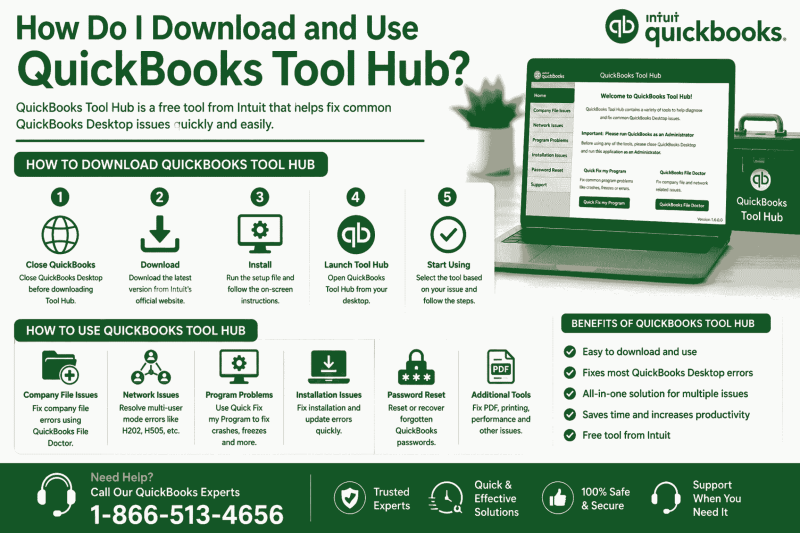
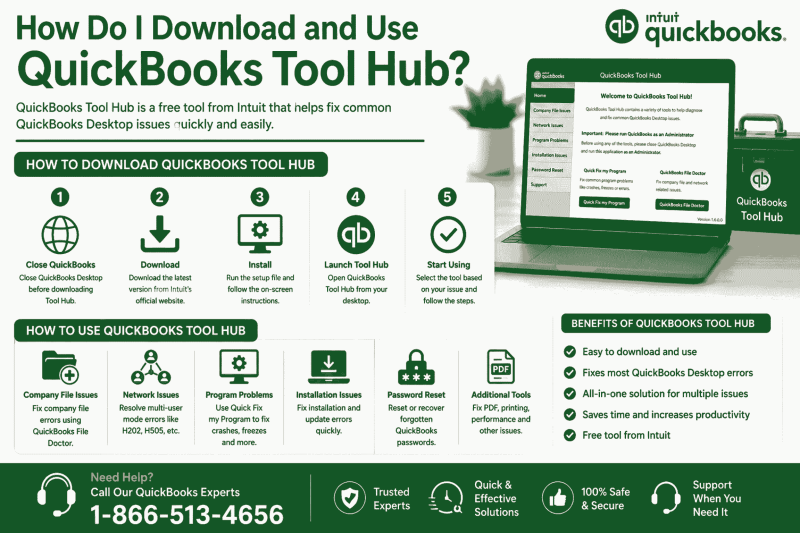
Only use Intuit's official page. Files from third-party sites can be damaged, outdated or unsafe. If you need the full steps, see our guide to download and install QuickBooks Tool Hub.
Fix 3: Install Pending Windows Updates
Outdated Windows components are a leading cause of Error 1603.
- Open Settings > Windows Update.
- Click Check for updates.
- Install everything available and restart when asked.
- Try the installation again.
Fix 4: Repair Microsoft .NET Framework
Tool Hub and QuickBooks both depend on .NET Framework.
- Press Windows + R, type optionalfeatures, and press Enter.
- Find .NET Framework 4.8 Advanced Services.
- If it is ticked, untick it, click OK, and restart your PC.
- Go back and tick it again to reinstall it.
- Restart once more and retry the installation.
You can also download Microsoft's .NET Framework Repair Tool from Microsoft's website and run it.
Fix 5: Repair Microsoft Visual C++ Redistributable
- Open Settings > Apps > Installed apps (or Control Panel > Programs and Features).
- Search for Microsoft Visual C++.
- For each entry, choose Modify (or Change), then click Repair.
- Restart your computer.
If a repair isn't available, download the latest supported Visual C++ Redistributable from Microsoft and install it.
Fix 6: Repair Windows System Files
Damaged system files can break the installer.
- Type cmd in the Start menu, right-click Command Prompt, and choose Run as administrator.
- Run sfc /scannow and wait for it to reach 100%.
- Then run DISM /Online /Cleanup-Image /RestoreHealth.
- Restart your computer and try the installer again.
These scans can take 10 to 20 minutes, so let them finish.
Fix 7: Reset the Windows Installer Service
Since Error 1603 comes from Windows Installer, a faulty service can be the cause.
- Open Command Prompt as administrator.
- Run msiexec /unregister and press Enter.
- Run msiexec /regserver and press Enter.
- Restart your computer and retry the installation.
Also check that the service is available. Press Windows + R, type services.msc, and look for Windows Installer. It should be able to start when needed. If it is disabled, set it to Manual and start it.
Fix 8: Clear Temporary Files
A full or damaged temp folder can cause installation failures.
- Press Windows + R, type %temp%, and press Enter.
- Select all files and delete them. Skip any that Windows says are in use.
- Also run Disk Cleanup (search for it in the Start menu) and clean temporary files.
- Restart and try again.
Fix 9: Check Your Antivirus and Firewall
Security software may block or quarantine parts of the installer.
- Check your antivirus quarantine list for any Tool Hub or QuickBooks files and restore them.
- Temporarily pause real-time protection only if the installer came directly from Intuit, then install and turn it back on right away.
- Make sure Windows Firewall isn't blocking the setup. If it keeps interfering with QuickBooks, see our guide on Windows Firewall blocking QuickBooks.
Never disable protection for files from unknown websites.
Fix 10: Remove Leftovers and Try a Clean Boot
A failed or partial earlier installation may leave files that confuse the new one.
Remove old copies:
- Go to Settings > Apps > Installed apps.
- Uninstall any older QuickBooks Tool Hub entry.
- Restart your computer.
- Check C:\Program Files and C:\Program Files (x86) for a leftover Tool Hub folder and delete it if you find one.
Then try a clean boot:
- Press Windows + R, type msconfig, and press Enter.
- On the Services tab, tick Hide all Microsoft services, then click Disable all.
- On the Startup tab, open Task Manager and disable startup items.
- Restart and run the installer.
- When you're finished, go back to msconfig and restore normal startup.
A clean boot stops background programs from interfering, so if the install works this way, one of those programs was the cause.
Error 1603 While Installing QuickBooks Desktop
If Tool Hub itself installed fine but you're getting Error 1603 while installing QuickBooks Desktop, you have a helpful extra tool available. Tool Hub includes an Installation Issues tab.
- Open QuickBooks Tool Hub and go to Installation Issues.
- Click QuickBooks Install Diagnostic Tool and let it run. It can take some time.
- Restart your computer when it finishes.
- Try installing QuickBooks Desktop again.
If the diagnostic tool doesn't solve it, the next step is a clean install of QuickBooks, which fully removes the old program files before reinstalling. Use the Clean Install Tool in the same tab, and keep your license and product numbers handy first. Your company files are not deleted, but back them up before you start.
For a full tour of these tabs, read our QuickBooks Tool Hub guide.
After the Installation Works
Once Tool Hub is installed, take a minute to confirm everything is fine:
- Open Tool Hub and check the version at the bottom of the Home tab.
- Run tools one at a time so you know which one fixes what.
- Use QuickBooks File Doctor if your original problem was a damaged or unreachable company file.
How to Prevent Error 1603 in the Future
- Keep Windows updated, including optional updates that repair components.
- Restart your PC after big updates or installations.
- Always download from the official Intuit website.
- Leave enough free disk space before installing anything.
- Don't interrupt an installation once it starts.
- Keep .NET Framework and Visual C++ healthy by repairing them at the first sign of trouble.
- Uninstall old versions properly instead of deleting folders by hand.
Frequently Asked Questions
What does Error 1603 mean?
It's a general Windows Installer message meaning a fatal error occurred during installation. It doesn't point to one specific cause.
Is Error 1603 caused by QuickBooks itself?
Not usually. It comes from Windows Installer, and the cause is typically a damaged Windows component, a blocked file or a leftover from a past installation.
Why does the Tool Hub installation fail without any error code?
It can be the same problem. A blocked download, missing admin rights or a damaged .NET Framework can make the setup roll back silently.
Do I need to uninstall QuickBooks to fix this?
No. Tool Hub is a separate program, and reinstalling it doesn't remove QuickBooks Desktop or your company files.
Can I turn off my antivirus to install Tool Hub?
Only briefly, and only if the file came directly from Intuit. Turn protection back on as soon as the installation finishes.
Will a clean install delete my company file?
It shouldn't, but always back up your company file before doing a clean install.
What if nothing works?
Try the fixes in the order given. If the error continues, the problem may be with a deeper Windows or system issue, and a professional can help.
Final Thoughts
Error 1603 looks scary, but it is usually caused by something simple: a missing permission, a damaged Microsoft component, a pending update or a leftover file. Start with the easy steps, such as running as administrator, downloading a fresh copy and installing Windows updates. Then work through .NET, Visual C++, the Windows Installer service and your security software. In most cases, you'll have Tool Hub installed within a few tries.
Still seeing "installation failed"? Contact the BooksMerge team and get expert help to get QuickBooks installed and running.
Source:
Click for the: Full Story
You might like









You Might Like this