



 Close Menu
 World
World
 Biography
 Health
 Education
 Business
 Lifestyle
 Sports
 Technology
 Animals
 History
 Food
Food
 Religious
 Startups
 Movies
 Politics
 Fashion
 Covid
Covid
 Diet
Diet
 Fitness
 Marketing
 Travel
 Science
 Reviews
 Social media
 Stories
 Facts
Facts
 Art
Art
 Entertainment
micky john

Business
Fix PDF and Print Problems with QuickBooks Desktop: 4 Easy Solutions
 micky john
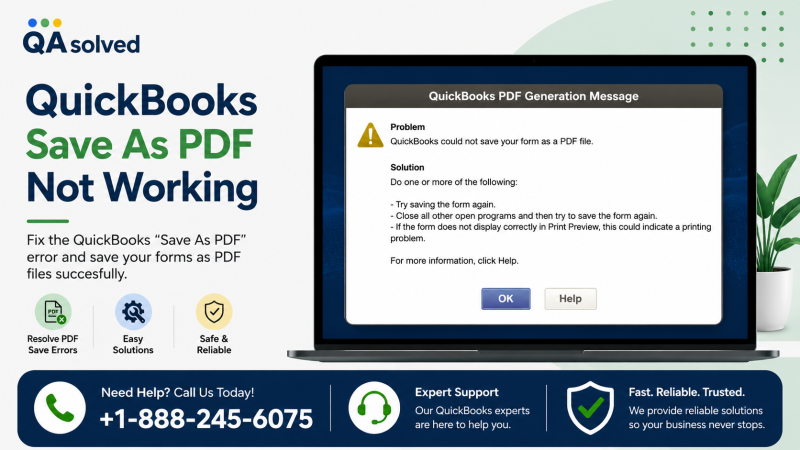
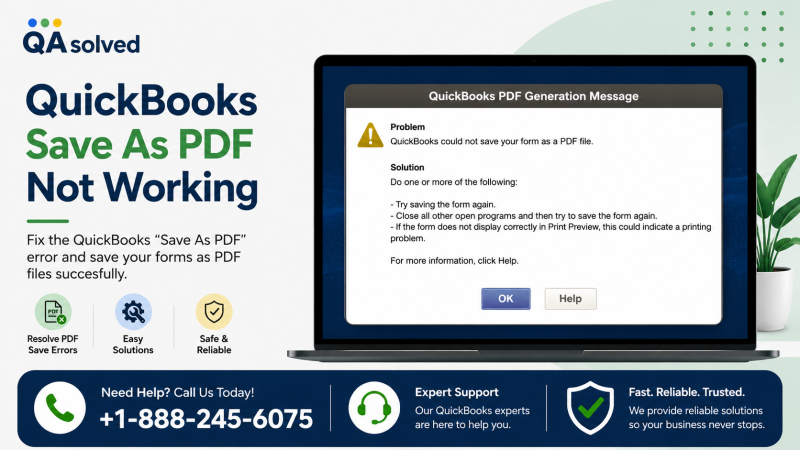
If you can’t print, email, or save forms and reports as PDF files in QuickBooks Desktop, the issue can disrupt your daily accounting tasks. You may experience printer connection errors, missing PDF components, PDF Converter problems, QuickBooks freezing, or issues with the Reconcile window.
Fortunately, several troubleshooting methods can help fix QuickBooks PDF and print problems. This guide explains the common errors and provides step-by-step solutions to get printing, emailing, and PDF saving working again.
Important: If you use Windows 11, make sure Microsoft XPS Document Writer is enabled in Windows Features before troubleshooting PDF-related issues.Common QuickBooks PDF and Print Errors
QuickBooks Desktop users may encounter several printing and PDF-related errors, including:
- There is a problem connecting to your currently selected printer.
- Microsoft XPS Document Writer connection error.
- Could not print to printer.
- Missing PDF file component.
- QuickBooks is not responding.
- PDF Converter shows offline.
- Unable to print directly to the QuickBooks PDF Converter.
- The device is not ready.
- Unable to save as a PDF file.
- QuickBooks could not save forms or reports as PDF files.
- QuickBooks freezes while reconciling accounts.
- Print Driver Host for 32-bit Applications has stopped working.
- Unrecoverable error.
- QuickBooks PDF Converter Activation Error -20, -30, or -41.
- Error 1722 or 1801 during PDF Converter installation.
- Problems printing transactions or reports.
- The Reconcile window disappears or does not appear.
The cause may involve QuickBooks components, printer settings, temporary folder permissions, the Windows Print Spooler service, or Microsoft XPS Document Writer.
Solutions to Fix QuickBooks Print and PDF Problems
QuickBooks Desktop may sometimes fail to print, email, or save documents as PDF because of printer, XPS Document Writer, permissions, or program-related issues. The following solutions can help identify and resolve common QuickBooks printing and PDF errors quickly. Try each solution carefully and check whether the problem is resolved before moving to the next one.
Solution 1: Run the QuickBooks Print & PDF Repair Tool
The QuickBooks Print & PDF Repair Tool can automatically diagnose and repair many common printing and PDF issues.
Step 1: Download and Install QuickBooks Tool Hub
QuickBooks Tool Hub helps resolve common QuickBooks Desktop errors. Before using it, close QuickBooks Desktop completely.
Follow these steps:
- Close QuickBooks Desktop.
- Download the latest version of QuickBooks Tool Hub.
- Save the installation file in an easy-to-find location, such as the Downloads folder or Desktop.
- Open the downloaded QuickBooksToolHub.exe file.
- Follow the on-screen instructions to install the application.
- Accept the terms and conditions.
- After installation, double-click the QuickBooks Tool Hub icon on your Desktop.
If you cannot find the desktop shortcut, search for QuickBooks Tool Hub using Windows Search and open the program.
For the best experience, use QuickBooks Tool Hub on a supported Windows system.
Step 2: Run the QuickBooks Print & PDF Repair Tool
Once QuickBooks Tool Hub is open:
- Select Program Problems.
- Choose QuickBooks Print & PDF Repair Tool.
- Allow the tool to complete the repair process.
- Wait until the process finishes.
- Open QuickBooks Desktop again.
- Try to print, email, or save your form as a PDF.
If the problem continues, move to the next solution.
Solution 2: Restart Your Computer and Reset Temp Folder Permissions
Incorrect temporary folder permissions can prevent QuickBooks from creating or saving PDF files.
Step 1: Restart Your Computer
Before making advanced changes, restart your computer.
After restarting:
- Open QuickBooks Desktop.
- Try to print or save the document as a PDF again.
If the issue remains, reset the permissions for your Windows Temp folder.
Step 2: Reset Temp Folder Permissions
Follow these steps carefully:
- Press Windows + R to open the Run command.
- Type %TEMP%.
- Press Enter.
- Right-click an empty area inside the Temp folder.
- Select Properties.
- Open the Security tab.
- Check the listed user names and groups.
- Make sure the required users and groups have Full Control.
- Save the changes.
After updating the permissions, return to QuickBooks and try saving the file as a PDF.
Step 3: Test the Microsoft XPS Document Writer
QuickBooks uses components of the Microsoft XPS Document Writer when creating PDF files. Testing the XPS printer can help determine whether the problem is related to Windows rather than QuickBooks.
To test it:
- Open Notepad.
- Type a simple word, such as Test.
- Select File > Print.
- Choose Microsoft XPS Document Writer.
- Select Print.
- Enter a file name.
- Save the file to your Desktop.
- Open the Desktop and check whether the XPS document was created.
If you cannot print to the XPS printer outside QuickBooks, the issue may be related to Windows printer settings or permissions.
Enable Microsoft XPS Document Writer
If Microsoft XPS Document Writer does not appear in the printer list:
- Open Control Panel.
- Switch to Category view.
- Select Programs.
- Under Programs and Features, choose Turn Windows features on or off.
- Find Microsoft XPS Document Writer.
- Select the checkbox.
- Click OK.
After enabling the feature, restart the computer if necessary and test QuickBooks again.
Solution 3: Create a New Template or Form
A damaged transaction template can sometimes prevent QuickBooks from printing or saving documents as PDFs.
Try creating a new template.
- Create a new template for the affected form.
- Apply the new template to the transaction.
- Try creating the PDF again.
If the PDF saves successfully, the original template may have been causing the issue.
This method can be useful when the problem affects only a specific invoice, report, estimate, or transaction form.
Solution 4: Update the Print Spooler Service
The Windows Print Spooler manages print jobs. If the service is stopped or configured incorrectly, QuickBooks may be unable to print, email, or save documents as PDFs.
Follow these steps:
- Right-click the Windows Start button.
- Select Run.
- Type Services.msc.
- Click OK.
- Find Print Spooler in the list of services.
- Right-click Print Spooler.
- Select Properties.
- Set the Startup type to Automatic.
- Click Apply.
- Click OK.
- Right-click the Print Spooler service again.
- Select Start if the service is not running.
Once the service starts, reopen QuickBooks Desktop and try saving or emailing a PDF.
QuickBooks Reconcile Window Disappears or Does Not Show
Sometimes QuickBooks may appear to freeze after you select Reconcile from the Banking menu. However, the actual issue may be that the Reconcile window opened off-screen.
To fix this problem:
- Check all open windows to see whether the Reconcile window is available.
- Select Close All if necessary.
- Start the reconciliation process again.
If QuickBooks continues to show errors during account reconciliation, the problem may be related to an unrecoverable error rather than the PDF feature.
Test and Adjust Microsoft XPS Document Writer Settings
If QuickBooks still cannot create PDF files, check the Microsoft XPS Document Writer settings.
Make Sure XPS Services Are Enabled
- Press Windows + R.
- Type optionalfeatures.
- Click OK.
- Find Microsoft XPS Document Writer.
- Make sure it is selected.
- Click OK.
After enabling the feature, test printing outside QuickBooks.
Check Security Software
Security programs, antivirus software, and firewalls may block the creation of .xps files.
Review your security software settings and make sure XPS-related files are not blocked.
This is especially important when printer and PDF problems begin after installing or updating security software.
Adjust Windows User Permissions
QuickBooks may fail to convert documents to PDF if the current Windows user does not have permission to print using Microsoft XPS Document Writer.
You may need to:
- Sign in with Windows administrator rights.
- Review printer permissions.
- Allow the affected user to print using the XPS Document Writer.
After adjusting permissions, reopen QuickBooks and test the PDF feature again.
Fix Missing PDF Components Error in Windows 11
Windows 11 users experiencing a Missing PDF File Component error should verify that Microsoft XPS Document Writer is enabled.
Follow these steps:
- Open Windows Search.
- Type Control Panel.
- Open Control Panel.
- Select Uninstall a program.
- Choose Turn Windows Features on or off.
- Enter administrator credentials if Windows asks for them.
- Find Microsoft XPS Document Writer.
- Select the checkbox next to it.
- Click OK.
Once the feature is enabled, restart the computer and test QuickBooks again.
How to Prevent QuickBooks PDF and Print Problems
You can reduce future QuickBooks printing and PDF issues by following a few simple practices:
- Keep QuickBooks Desktop updated.
- Keep Windows updated.
- Make sure Microsoft XPS Document Writer is enabled.
- Check printer and Windows user permissions.
- Keep the Print Spooler service running.
- Review antivirus and firewall settings.
- Use QuickBooks Tool Hub when common program problems occur.
- Restart your computer after major QuickBooks or Windows updates.
Regular system maintenance can help prevent missing components, PDF Converter errors, printer connection problems, and other QuickBooks Desktop issues.
Frequently Asked Questions
Why can't I save a PDF from QuickBooks Desktop?
The issue may be caused by damaged QuickBooks components, incorrect Temp folder permissions, disabled Microsoft XPS Document Writer, printer problems, or Windows service issues. Running the QuickBooks Print & PDF Repair Tool is a good first troubleshooting step.
How do I fix the QuickBooks PDF Converter offline error?
Start by running the QuickBooks Print & PDF Repair Tool. If the issue continues, test Microsoft XPS Document Writer, reset Temp folder permissions, and verify that the Windows Print Spooler service is running.
Why is Microsoft XPS Document Writer important for QuickBooks?
QuickBooks uses components of Microsoft XPS Document Writer when saving documents as PDF files. If the XPS feature is disabled or unavailable, QuickBooks may fail to create or email PDFs.
How do I fix QuickBooks Error 1722 or 1801 for PDF Converter?
Run the QuickBooks Print & PDF Repair Tool first. Then check the QuickBooks installation, Windows printer components, XPS Document Writer, and Print Spooler service.
What should I do if the QuickBooks Reconcile window disappears?
Check whether the window opened off-screen by reviewing all open windows. Close unnecessary windows and start the reconciliation process again. If the issue continues with an error, investigate potential unrecoverable errors.
Conclusion
QuickBooks PDF and print problems can prevent you from printing invoices, emailing forms, saving reports, and completing important accounting tasks. Errors involving the QuickBooks PDF Converter, Microsoft XPS Document Writer, missing components, printer connections, and the Print Spooler service can all contribute to the problem.
Start with the QuickBooks Print & PDF Repair Tool because it can quickly fix many common issues. If that does not work, restart your computer, reset Temp folder permissions, test the XPS Document Writer, create a new form template, and verify the Print Spooler settings.
By following these troubleshooting steps, you can resolve most QuickBooks Desktop PDF and printing issues and get back to printing, emailing, and saving your business documents without interruption.
Source:
Click for the: Full Story
You might like







You Might Like this