Close Menu
 World
 Biography
 Health
 Education
 Business
 Lifestyle
 Sports
 Technology
 Animals
 History
 Food
 Religious
 Startups
 Movies
 Politics
 Fashion
 Covid
 Diet
 Fitness
 Marketing
 Travel
 Science
 Reviews
 Social media
 Stories
 Facts
 Art
 Entertainment
Shailaja Sangeetam

Technology
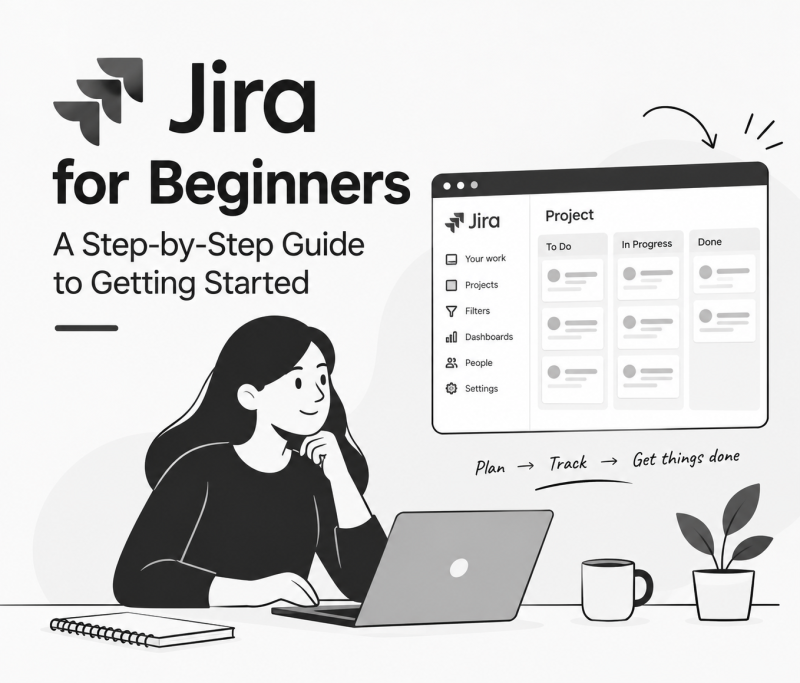
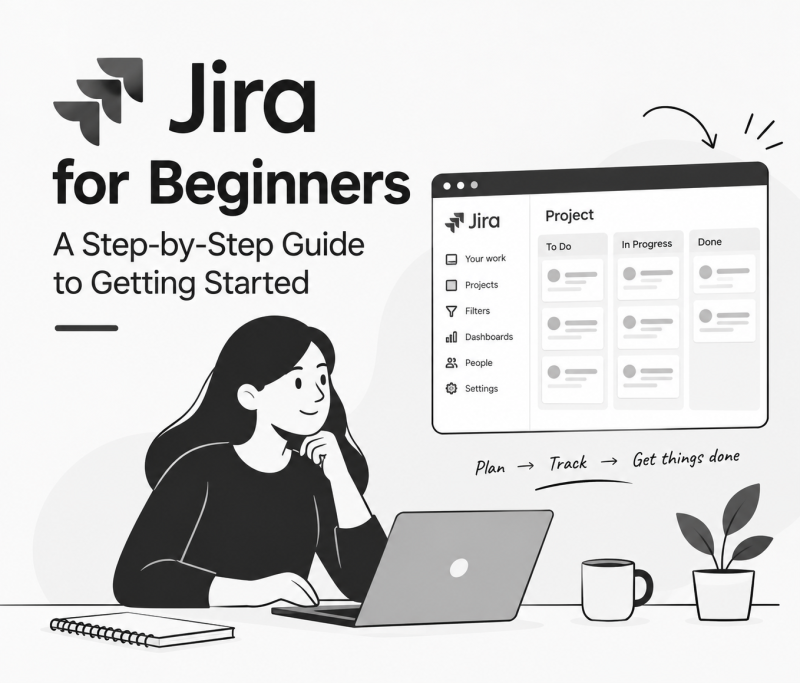
Jira for Beginners: A Step-by-Step Guide to Getting Started
 Shailaja Sangeetam
Managing project tasks becomes difficult when team members rely on scattered messages, spreadsheets and emails to track their work. Tasks get overlooked, deadlines are missed and nobody has a clear picture of the project's progress.
Jira helps teams organise their work in one place. It allows users to create tasks, assign responsibilities, track progress and manage project activities through customisable workflows.
Although Jira is widely used by software development and Agile teams, beginners may find its interface and features unfamiliar at first. Understanding the basics can make it much easier to get started.
This guide explains how to use Jira, create your first project and manage tasks step by step.
What Is Jira?
Jira is a project and work management platform developed by Atlassian. It helps teams plan activities, track tasks, report issues and monitor project progress.
Software development teams commonly use Jira to manage bugs, user stories, Sprint Backlogs and development tasks. However, it can also support marketing, operations, HR and other business teams.
For example, a marketing team can use Jira to manage blog assignments, track editing progress and monitor publication deadlines. A software team can use it to organise feature development and bug fixes.
Its flexibility makes Jira useful for teams with different project requirements.
Create Your Jira Account
The first step is to create an account.
- Visit the official Atlassian website.
- Choose the Jira product and explore the available plans.
- Sign up using your email address or an available account option.
- Follow the setup instructions.
- Once your workspace is ready, open Jira and explore the main dashboard.
The available features may vary depending on your subscription, project type and user permissions.
Create Your First Jira Project
After setting up your account, create a project to organise your work.
Open Jira and select the option to create a project. Depending on the available interface, you may be asked to choose a project template.
Common project types include:
- Scrum: Suitable for teams that plan work in fixed-length Sprints.
- Kanban: Suitable for teams that manage work through a continuous workflow.
For beginners, a simple Kanban project can be a good starting point because it provides a visual way to track tasks.
Give your project a name, select the appropriate settings and create it. You will then have a workspace where you can manage your activities.
Understand Jira Issues and Create Your First Task
In Jira, an issue represents a unit of work that needs to be tracked. Depending on the project configuration, it may be a task, bug, story or another work item.
To create an issue:
- Select the Create option.
- Choose the relevant project.
- Enter a short and clear summary.
- Add a description explaining the work.
- Select the issue type.
- Set the priority and assignee, if required.
- Add a due date or other relevant details.
- Save the issue.
For example, if you are managing a website development project, you could create tasks such as "Design the homepage", "Build the login page" and "Test the registration form".
Clear descriptions help team members understand what needs to be completed.
Learn How Jira Workflows Operate
A workflow represents the stages an issue moves through from creation to completion.
A basic workflow may include:
- To Do: Work has been identified but has not started.
- In Progress: Someone is actively working on the issue.
- In Review: The completed work is being checked.
- Done: The work has been completed.
Team members update an issue's status as work progresses. This makes it easier to understand which tasks are pending, active or finished.
Jira workflows can be customised based on project requirements and permissions. Avoid adding too many stages when a simple process is enough.
Assign Tasks and Track Project Progress
Once you create issues, you can assign them to team members. Each person can review their assigned work, update progress and add comments when necessary.
Jira also provides boards that display issues according to their current status. On a Kanban board, cards move between columns as work progresses.
For Scrum projects, teams can use a backlog to organise upcoming work and select items for a Sprint.
These features help Scrum Masters, Project Managers and team members maintain visibility without depending entirely on manual status updates.
Explore Jira Reports and Dashboards
Tracking tasks is only one part of project management. Teams also need to understand how work is progressing.
Jira provides reports and dashboards that help users review project information.
Some useful reports include:
- Burndown Chart: Shows how much work remains during a Sprint.
- Velocity Chart: Displays the amount of work completed across previous Sprints.
- Sprint Report: Summarises work completed and work carried forward during a Sprint.
- Cumulative Flow Diagram: Shows how work items move through different workflow stages over time.
Beginners can start with the reports available in their project and explore them as they become more familiar with Jira.
Tips for Learning Jira Faster
Learning every Jira feature at once can be overwhelming. Start with the functions you will use regularly and build your knowledge through practice.
- Create a sample project and add a few tasks.
- Practise changing issue statuses.
- Explore Scrum and Kanban boards.
- Learn how backlogs and Sprints work.
- Experiment with filters and dashboards.
- Understand user permissions before changing project settings.
If you are preparing for a Scrum Master or project management role, practise using Jira in realistic project scenarios. Managing a sample Sprint or tracking a small development project can help you understand how the platform supports everyday team activities.
Conclusion
Jira provides a structured way to create tasks, manage workflows and track project progress. Beginners can start by creating a project, adding issues, updating statuses and exploring boards before moving on to reports and advanced features.
The best way to become comfortable with Jira is to use it regularly. Start with a small project, practise its basic functions and gradually explore the features that match your team's requirements.
FAQs
1. Is Jira easy to learn for beginners?
Yes. Beginners can learn Jira by starting with basic activities such as creating projects, adding issues, assigning tasks and updating statuses. Advanced workflows and reporting may require additional practice.
2. What is Jira mainly used for?
Jira is used for project management, issue tracking, task organisation, bug tracking, backlog management and Agile delivery.
3. What is the difference between a Jira task, bug and story?
A task represents a piece of work, a bug records a defect or problem, and a story describes a requirement or functionality from a user's perspective. The available issue types depend on project configuration.
4. Can Jira be used without Scrum knowledge?
Yes. Jira can be used for general task and project management without following Scrum. Teams can choose Kanban or other workflow configurations based on their needs.
5. Do I need coding knowledge to use Jira?
No. Basic Jira activities such as creating issues, assigning tasks and updating workflows do not require coding knowledge. Advanced integrations, scripting and custom configurations may require technical skills.
Source:
Click for the: Full Story
You might like