Close Menu
 World
World
 Biography
 Health
 Education
 Business
 Lifestyle
 Sports
 Technology
 Animals
 History
 Food
Food
 Religious
 Startups
 Movies
 Politics
 Fashion
 Covid
Covid
 Diet
Diet
 Fitness
 Marketing
 Travel
 Science
 Reviews
 Social media
 Stories
 Facts
Facts
 Art
Art
 Entertainment
Mark Henry

Technology
QuickBooks Utility Application Keeps Popping Up: Causes & Quick Solutions
 Mark Henry
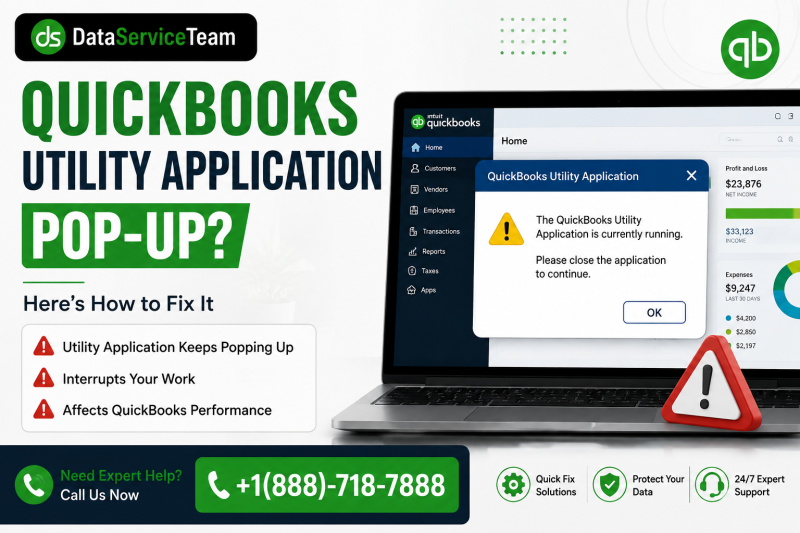
If the QuickBooks Utility Application keeps popping up while you are working, opening QuickBooks, or switching between company files, it can interrupt your workflow and may indicate an issue with QuickBooks components, installation files, Windows permissions, or background processes.
This guide explains what the QuickBooks Utility Application is, why it keeps appearing, and what you can do to stop the pop-up without unnecessarily reinstalling QuickBooks.
Quick answer: The QuickBooks Utility Application may repeatedly appear because of damaged QuickBooks installation files, an incomplete update, Windows permission problems, compatibility issues, or a QuickBooks background process that is not closing correctly. Restarting QuickBooks and Windows, updating QuickBooks, repairing the installation, and checking permissions can often resolve the problem.What Is the QuickBooks Utility Application?
The QuickBooks Utility Application refers to utility-related components that support QuickBooks Desktop operations. These components can help QuickBooks perform background tasks, communicate with company files, manage processes, or complete certain maintenance and support operations.
Normally, users should not need to interact with these components frequently. However, if a utility-related window or prompt keeps popping up repeatedly, something may be preventing QuickBooks from completing its normal process.
The exact cause can vary depending on your QuickBooks Desktop version, Windows configuration, company file environment, and recent software changes.
Why Does the QuickBooks Utility Application Keep Popping Up?
Several issues can cause repeated QuickBooks utility prompts. The most common reasons include:
1. Damaged QuickBooks Installation Files
If QuickBooks program files become damaged or corrupted, the application may repeatedly attempt to repair, verify, or access required components.
This can happen after an interrupted update, unexpected system shutdown, malware detection, or an incomplete installation.
2. QuickBooks Update Problems
An incomplete or failed QuickBooks update can leave some program components out of sync.
QuickBooks may then repeatedly attempt to access a utility component when starting or performing certain tasks.
3. Windows Permission Restrictions
QuickBooks sometimes requires appropriate Windows permissions to access program folders and related files.
If Windows prevents the application from accessing a required component, the utility prompt may appear again.
4. QuickBooks Background Processes Are Not Closing
QuickBooks uses several background processes. If one of these processes becomes stuck, QuickBooks may behave as though an operation is still in progress.
Closing QuickBooks completely and restarting Windows can help clear these processes.
5. Compatibility or Windows Configuration Issues
Changes to Windows, security software, compatibility settings, or system components can occasionally interfere with QuickBooks Desktop.
If the problem started after a Windows update or software installation, compatibility may be worth checking.
6. Third-Party Security Software
Antivirus or firewall software can sometimes restrict legitimate QuickBooks processes.
If a QuickBooks component is blocked, the application may repeatedly request access or attempt to restart the required process.
7. Damaged Company File or Network Environment
If the pop-up appears only when opening a particular company file, the problem may be related to the company file or its network environment rather than the QuickBooks program itself.
For multi-user installations, incorrect hosting or permissions can also contribute to unexpected QuickBooks behavior.
Quick Solutions for QuickBooks Utility Application Keeps Popping Up
Try the following solutions in order. Start with the simpler fixes before making changes to your QuickBooks installation.
Solution 1: Close QuickBooks Completely
First, close QuickBooks and make sure its background processes are no longer running.
- Close QuickBooks Desktop.
- Press Ctrl + Shift + Esc to open Task Manager.
- Look for QuickBooks-related processes.
- Select a relevant process if it is still running.
- Choose End Task.
- Restart QuickBooks.
If the pop-up was caused by a stuck background process, this may resolve the issue immediately.
Solution 2: Restart Your Computer
A Windows restart can clear temporary processes and memory conflicts.
After restarting:
- Do not immediately open multiple applications.
- Launch QuickBooks Desktop.
- Open your company file.
- Check whether the utility application appears again.
If the problem disappears after restarting but returns later, a background application or system process may be contributing to the issue.
Solution 3: Update QuickBooks Desktop
An outdated QuickBooks installation can sometimes cause unexpected application behavior.
Open QuickBooks and check for available updates. Install any applicable updates and restart QuickBooks afterward.
It is also a good idea to verify that your QuickBooks version is compatible with your current Windows environment.
Solution 4: Run QuickBooks as Administrator
Windows permissions can prevent QuickBooks from accessing certain files or folders.
To test administrator permissions:
- Close QuickBooks.
- Right-click the QuickBooks Desktop icon.
- Select Run as administrator.
- Open your company file.
- Check whether the utility prompt continues appearing.
If running QuickBooks with elevated permissions resolves the issue, Windows permissions may have been involved.
Avoid permanently changing security settings unless you understand why the change is necessary.
Solution 5: Use QuickBooks Tool Hub
QuickBooks Tool Hub provides several diagnostic and repair utilities designed to troubleshoot common QuickBooks Desktop problems.
Depending on the problem, tools such as Quick Fix my Program can help close background QuickBooks processes and repair certain program-related issues.
After running the appropriate diagnostic tool, restart your computer and test QuickBooks again.
Solution 6: Repair the QuickBooks Installation
If QuickBooks program files are damaged, repairing the installation may resolve repeated utility prompts.
Before performing repair operations, make sure your company files are backed up.
A typical Windows repair process is:
- Close QuickBooks.
- Open Windows Settings or Control Panel.
- Go to installed applications/programs.
- Locate QuickBooks Desktop.
- Select the repair or modify option if available.
- Follow the on-screen instructions.
- Restart Windows.
- Open QuickBooks and test the company file.
The exact steps can vary by Windows and QuickBooks version.
Solution 7: Check Whether the Problem Happens With One Company File
This is an important troubleshooting step.
Try opening another QuickBooks company file.
- If the pop-up appears with every company file: the QuickBooks installation or Windows environment may be responsible.
- If it appears with only one company file: the particular company file or its location may need further investigation.
You can also try opening the company file from its normal local location if it is stored on a network or external drive.
Solution 8: Temporarily Check Security Software
If antivirus or firewall software recently changed its settings, it may be interfering with QuickBooks.
Check whether QuickBooks processes or folders are being blocked.
Do not permanently disable antivirus or firewall protection simply to troubleshoot the issue. Instead, use your security software's approved exception or allow-list process when appropriate.
If your computer is managed by an organization, contact the administrator before changing security settings.
Solution 9: Reinstall QuickBooks as a Last Resort
If the utility application continues popping up after updates, repairs, and diagnostic tools, the QuickBooks installation may require a clean reinstall.
Before reinstalling:
- Create a backup of your company files.
- Keep your QuickBooks license and product information available.
- Confirm which QuickBooks version you need.
- Make sure your company files are accessible.
- Use the appropriate QuickBooks installation files.
A reinstall should generally be considered after less disruptive troubleshooting methods have failed.
How to Identify the Actual Cause
Instead of immediately reinstalling QuickBooks, pay attention to when the utility application appears.
It appears when QuickBooks starts
This may indicate a program installation, startup process, update, or Windows permission issue.
It appears when opening a company file
The company file, file location, permissions, or network environment may be involved.
It appears repeatedly during normal work
A background process, damaged program component, security application, or Windows conflict could be responsible.
It started after an update
Check both QuickBooks and Windows updates. An incomplete installation or compatibility problem may be involved.
This information can significantly reduce unnecessary troubleshooting.
Frequently Asked Questions
1. Why does the QuickBooks Utility Application keep opening?
It can happen because of damaged QuickBooks files, incomplete updates, Windows permissions, stuck background processes, security software interference, or compatibility issues.
2. Is the QuickBooks Utility Application a virus?
Not necessarily. A QuickBooks-related utility process can be legitimate. However, if you are seeing an unfamiliar executable or unexpected security warning, verify the file's location and identity before allowing it to run.
3. How do I stop the QuickBooks Utility Application pop-up?
Start by closing QuickBooks completely, restarting Windows, updating QuickBooks, and running an appropriate QuickBooks diagnostic tool. If the issue continues, repair the QuickBooks installation.
4. Can QuickBooks Tool Hub fix the utility application problem?
It may help when the problem is related to QuickBooks program processes or installation components. The appropriate Tool Hub utility depends on the underlying cause.
5. Why does the pop-up appear every time I open QuickBooks?
Repeated startup prompts can be associated with damaged program files, incomplete updates, Windows permissions, or a QuickBooks process that is not completing correctly.
6. Should I reinstall QuickBooks to fix this issue?
Not immediately. Try restarting Windows, updating QuickBooks, checking permissions, using diagnostic tools, and repairing the installation first. Reinstallation can be considered if those methods do not work.
7. Can antivirus software cause the QuickBooks utility pop-up?
Yes. Security software can sometimes restrict legitimate QuickBooks processes or access to required files. Check your security software's logs and approved application settings rather than permanently disabling protection.
8. What if the utility application appears with only one company file?
If QuickBooks works normally with other company files, the specific company file or its storage location may be involved. Test a different company file and check whether the issue follows the file.
9. Will this problem damage my QuickBooks company file?
A recurring utility prompt does not automatically mean your company file is damaged. However, you should maintain a recent backup before performing repairs, updates, or other troubleshooting procedures.
Final Thoughts
The QuickBooks Utility Application keeps popping up problem can be frustrating, but it does not always require a complete QuickBooks reinstall. In many cases, the issue can be traced to stuck background processes, outdated software, damaged installation files, Windows permissions, or security software interference.
Start with simple troubleshooting: restart QuickBooks and Windows, update QuickBooks, check permissions, and use the appropriate diagnostic tools. If the problem occurs only with one company file, investigate that file and its storage location before changing the entire QuickBooks installation.
Source:
Click for the: Full Story
You might like